How to Use a Sensitivity Converter
What is a Sensitivity Converter and Why Do You Need One?
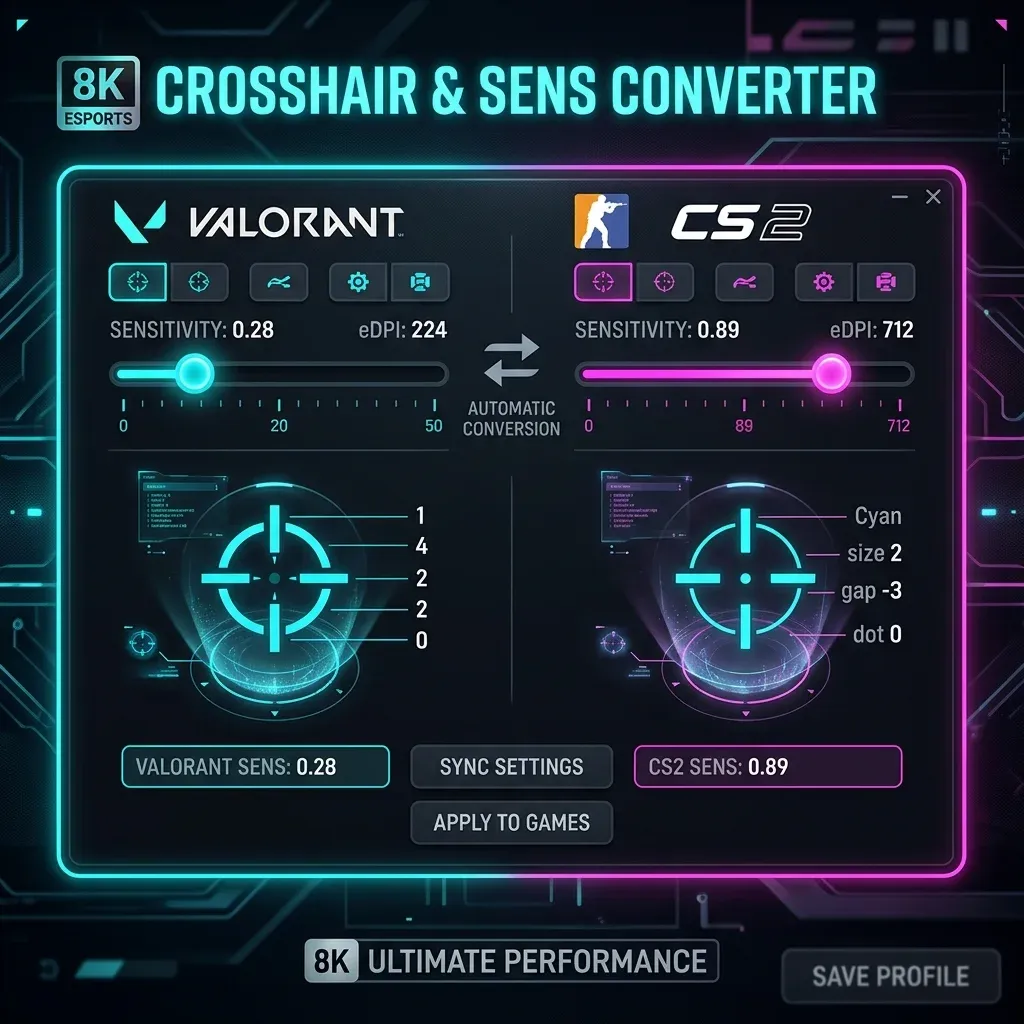
A sensitivity converter (also called an aim converter, DPI converter, or cross-game sensitivity calculator) is a tool that translates your mouse sensitivity from one game to another while preserving your physical aim speed. Without a converter, switching from Valorant to CS2 and trying to "guess" your new sensitivity can cost you weeks of relearning muscle memory you already built.
The need for a converter exists because every game engine handles mouse input differently. Valorant uses a yaw value of 0.07, CS2 uses 0.022, Overwatch 2 uses 0.0066. A sensitivity of "1.0" means completely different things in each game. The converter uses these yaw constants to produce a mathematically precise translation.
The Science Behind Sensitivity Conversion
The fundamental metric that a sensitivity converter preserves is your cm/360 — the physical centimeters you must move your mouse to rotate your camera 360° in-game. This is game-engine-agnostic: it is pure physics.
To find the equivalent CS2 sensitivity that produces the same 54.5 cm/360 at 800 DPI:
This is exactly what our DCPROSENS converter does automatically — you never need to run these formulas manually.
Step-by-Step: How to Use DCPROSENS Converter
Step 1: Know Your Current Settings
Before converting, make sure you have these three values ready:
- Your mouse DPI — Find this in your mouse software (Logitech G HUB, Razer Synapse, SteelSeries GG). The default is usually 800 DPI if you've never changed it.
- Your current game — The game you are currently playing (source game)
- Your current in-game sensitivity — Found in Settings → Mouse in your game
Step 2: Use the Converter
- Go to dcprosens.com and find the converter at the top of the page
- In the "Input (From)" section, select your source game from the dropdown
- Enter your in-game sensitivity in the "Sensitivity" field
- Enter your DPI in the "DPI (Mouse)" field
- In the "Output (To)" section, select your target game
- Read the Converted Sensitivity — this is your new in-game setting
Step 3: Verify with cm/360
The converter also shows your CM / 360° value. This should be the same before and after conversion (our tool guarantees this). A good sanity check: if your cm/360 is between 20–60cm, you are in the normal competitive range.
Step 4: Apply and Adapt
Enter the converted sensitivity into your new game's settings. Expect a 1–3 day adaptation period even though the physical movement is identical — your brain needs time to re-associate the same muscle memory with the new game's visual feedback.
Most Common Game Conversions (With Formulas)
Valorant → CS2
Multiply your Valorant sensitivity by 3.18.
CS2 → Valorant
Divide your CS2 sensitivity by 3.18.
CS2 → Apex Legends
Both games share the same yaw (0.022), so sensitivity is 1:1. No conversion needed.
Overwatch 2 → Valorant
Overwatch 2 uses a much smaller yaw value. Multiply your OW2 sensitivity by approximately 0.09.
Note: Use our tool for exact values — the OW2 yaw involves a non-linear scaler at the outer range.
ADS Sensitivity: The Part Most Guides Miss
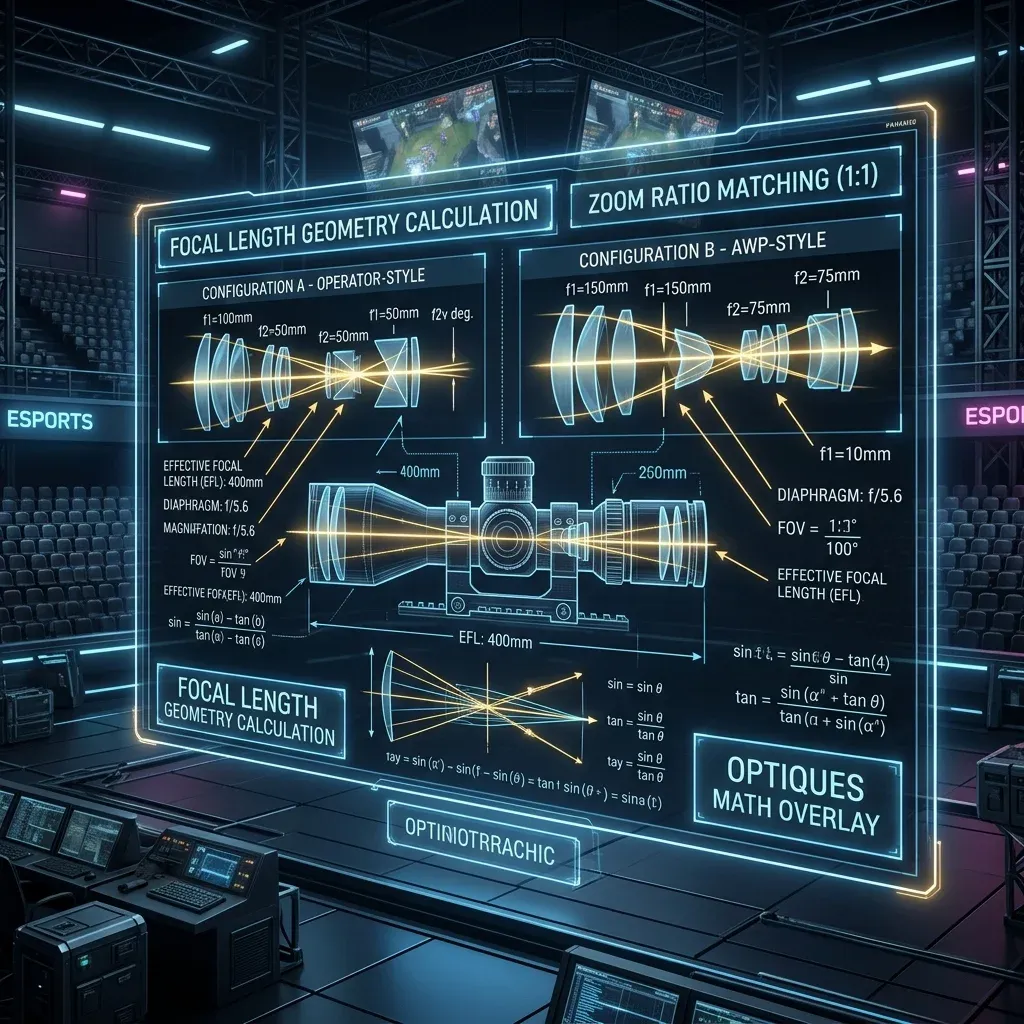
The converter handles hipfire sensitivity. When aiming down sights (ADS), most games use a separate sensitivity multiplier. Here are the key ADS settings for top games:
- Valorant: Set "Scoped Sensitivity Multiplier" to
1.0for consistent tracking. For monitor-distance matching (used by TenZ), set to0.847. - CS2: Zoom sensitivity is set separately. For 1:1 match with Scout/AWP scoped view, set zoom_sensitivity_ratio to
0.818933in console. - Apex Legends: Set ADS sensitivity to
1.0(relative) in Mouse / Look options for hipfire-matched ADS. - Overwatch 2: "Relative Aim Sensitivity While Zoomed" at
37.03%matches hipfire for most heroes.
Why cm/360 is Better Than Raw Sensitivity Numbers
Sensitivity numbers are meaningless without context. Telling someone "I use 0.3 in Valorant" says nothing to a CS2 player. But saying "I use 30 cm/360" is immediately understood by any FPS player regardless of game. It is the universal aim language.
Professional teams increasingly standardize players' setups using cm/360 rather than game-specific sensitivity. When a player is switched from CS2 to Valorant for a team expansion, coaches set the new game to match the player's cm/360 from the old game — minimizing relearning time.
Common Conversion Mistakes
- Forgetting to match DPI: The converter assumes your DPI stays constant. If you also change your DPI, your cm/360 will change. Only change one variable at a time.
- Using in-game "sensitivity" sliders without understanding the scale: Rainbow Six Siege uses a "mouse sensitivity" that is NOT a standard yaw-multiplier — it includes a horizontal/vertical split and a zoom slider. Our converter handles this correctly.
- Expecting instant adaptation: Even with a perfect conversion, your visual system needs 2–4 sessions to fully trust the new game's feel. Track your performance from day 3 onward, not day 1.
Conclusion: Set It and Lock It
The right sensitivity conversion is a one-time investment that protects all your aim training. Use the DCPROSENS converter, write down your cm/360, apply it to every game you play, and never change it on a whim. The pros call this "locking your eDPI" — your aim can only improve when the physical variable is constant.
🎯 Lock In Perfect 1:1 Aim & Pro Consistency
Tired of daily aim inconsistency? Calibrate your physical cm/360, scope matching, and sensor latency. Get the complete Precision Aim System (4-Part Technical Manifestos) today for only $9.00 USD!
Unlock Elite Precision ($9) ⚡Dalto Outlier
Creator, DCPROSENSDalto built DCPROSENS to help competitive FPS players convert sensitivity, calibrate DPI, and keep their aim consistent across games.